#Blog #Tips fotoflexer and picmonkey when image is everything.

Blog or not you probably will have a time you need to edit photos or images, be it for getting rid of a pimple or simply to put a ‘Merry Christmas’ or ‘Happy Birthday, Ronovan’ on a pretty picture to email because it’s cheaper than buying one. And it is cheaper than even mailing it if you are adding in the gas money, and tax and any impulse buying you do, even just that soft drink you just NEED or you will DIE. Why do I hear a 10 year old crying for baseball cards? Hmm.

Here are some tips.tipping_hat.jpg

I want to talk about two tools today; fotoflexer and picmonkey.

Both of tools are free to use online with just a bit of difference. I won’t be getting detailed today. I already went into some detail about fotoflexer in another recent article titled ‘How to use fotoflexer to add text and more to your images‘. I will get deeper into not only it but picmonkey as the days go by. Today is a just ‘tell you about them and and what I see as the differences and similarities’ day. Because really the way to learn how to use something like this is to go and play with it. I kid you not. Once you learn where things are, then you might go and see some advanced tutorials, which there are. I used a few on fotoflexer that are really cool. Cool’s not professional to use? Are you serious? Bummer, dude.


Let’s just be straight up here. Try both and see which one you like. Yeah, I know, that sort of tells you not to read the rest of this, right? Not really. But at the end of things that’s what you should do no matter whose article you read, because preference is just an opinion. Each of us will like one over the other.

Pros and Cons

In the world of Pros and Cons there is really only one Con to fotoflexer  and one for picmonkey I’ve found so far, but I am still looking in both.

The Fotoflexer Con

It appears you have to allow pop up ads on the site.  One pop up will occur and then you are free to go. If you have adblocker and pretty much anything like it you can just allow ads by site. This hasn’t been an annoyance for me so far as it has just been the one ad that pops up, I leave it in the background on another page were it pops, and I’m left alone the rest of the time. And they aren’t offensive ads that I have seen to date.

Con Rating with 5 being Migraine?-1.5 I know it’s free to use and they have to get the money in some way, so I go with, at least it’s not a distraction while working on an image.


Picmonkey Con

It is possible I am in error but I haven’t found the animated feature yet. By animated I mean you can make added images or text to your images blink or twinkle. It’s not a must but it is fun at times.

Con Rating with 5 being Migraine?-Maybe. I only give it a 1 because maybe I want the animation and I haven’t seen it yet. But no tool is perfect, no free tool anyway.


Neither of the Cons for either is a killer for me, a knock out not going to use either punch. Both have features I like that the other doesn’t.

Fotoflexer Pros

It has the animated Text and added images feature. Just a bit of a cool thing. But what I really like is the tool feature bar itself as it is located at the top and is very clean looking, while picmonkey is just a little more difficult for me to go through at the moment, but with usage either with do just fine.

Picmonkey Pros

Picmonkey has some nice fonts and is more of a classic design for images. It has more in the way borders/frames.


I think you could combine the two at times and come up with some fantastic creations. If you like playing around with things, then go for it. If not, stick with one and learn it well.


My pick? I am not a overly image needy person as far as what I need to use, so I go with the layout and toolbar of fotoflexer. It is just more appealing to me and I can have fun with the animation pieces.

Classic pick? Go with Picmonkey. Yes you can get classic with fotoflexer. I just wanted to say that before anyone jumps in. In fact I used it for a recent Haiku where I blurred the edges of old paper and the like to get the right look. But if you don’t care about the bling, then picmonkey might be your thing, especially if you don’t want the pop ad.

I’ll do a more detailed article on picmonkey as soon as I explore it more. And I will also post some results from each site to show you want can be done.


Two sites, are much the same inside, just different ways to work the features. It’s all a matter of taste.


Much Respect

Ronovan

 

followmeonbloglovin

2014 © Copyright-All rights reserved by ronovanwrites.wordpress.com

How to use fotoflexer for adding text and more to your images.

I had a lovely and sweet lady ask how to put text on an image. Sometimes, even when you are just not at your best you can’t say no to a wonderful woman. So here I am.

You can do it with your various photo editing things. I used to use  ‘Paint’ that comes with windows to do it sometimes but now I use an online site called fotoflexer.com.  I know of this because Colleen of Silver Threading used it on a Haiku Challenge of mine and I went nuts for it. Collen is another sweet and beautiful lady and friend. She shared the site with me and now here we are.

The reason I use it now:

  • They have some cool features you can use to make things look awesome.
  • The text looks sharp and professional.

Why should you add text or other things to your images:

  • You don’t have to but it makes for variety and if you are using Twitter it’s a way to get something said in a visual way that jumps out at people. I get more clicks when I include images than when not.

The step by step looks long below, but if any of you have read my Tips before you know they really aren’t that Long, they are just detailed.


First thing to remember is? Take your time this first time out. Give yourself plenty of time to play around with it and have fun with it, because it can be very fun to play with adding things. So if you are in a hurry to get an image done . . . either forget it this time or plan for it another day. Sure you can do this in a matter of a few minutes once you know it, but right now . . . you don’t know it.


Once you get to fotoflexer you can sign up for a free account, like I did, or just use it. But either way you need to allow pop up ads. It’s not for the ads themselves but I think it’s for what works on the actual site itself. You can allow pop up ads just for a particular site. Most likely you have ‘Adblock Plus’ or something of that nature. That’s not what I have but it is a popular one. Just click it and click the option that probably says allow for this page.


Now we’re good to go. I am not going to bullet point these. Each piece is a step, each paragraph or whatever you want to call it.


I simply click on ‘upload photo’ and then ‘upload’. Now you find the image on your computer you want to use and load it.


Once loaded you get a lot of ‘tabs’ for features you can use. Play around with them. You can add picture frame borders or little decoration things. It’s lots of fun. But we are looking at just doing text right now.


To add text to your photo, click on the tab  that says ‘Decorate’. You will see the big ‘T’ for text here and you can do plain text or glitter text. Both are added the same way, it’s just glitter can be animated so it sparkles.

So click the T of choice. I am using the Glitter one for fun here.

You will get a little ‘Enter Text Here’ box come up as well as a big white box on the photo where the text shows up. Go ahead and type your text. You can resize the actual text box on the picture by clicking and dragging the sides, top and bottom and also dragging the box to the location of your choice. I like to do that early so I see what it looks like as I do it. But it really doesn’t matter when.

fotoflexIn the Text Options box above you can see some options that appear on the right of the screen at this point. I have the glittery one here, and can actually uncheck the ‘Glittery’ if I like. Let’s run through the options quickly.

Background allows you to do the shape of your text box that will appear on your photo. You might want a heart or something, this is where you choose it.

Transparent will get rid of the background of the text box and the words will appear on the photo itself.

Font-Here it’s glittery or not but if you notice the box below as Cretino in it. That’s a font style. Simply click here and choose your font.

You can align your text left, center, or right with the option below the text options

Choose your Font Size-Auto will automatically adjust the text size as you change the height or width of you text box on the photo.

Text Color-Change the Text color

Background Color-Change the background color if not using Transparent.

Then you Apply the changes, Cancel, or Delete.


Once you hit apply and you see your results and maybe you don’t like them, if you look to the far left of the screen you will see the ‘undo’ button. Click that and the text disappears and you start over.


But you’re happy with the results so what next. At the very top you will see ‘Save’. Click ‘Save’

Once the save is finished you then get the ‘click here to continue button’. Click it.

Now the ‘Save To My Computer’ button comes up. You guessed it, click it.

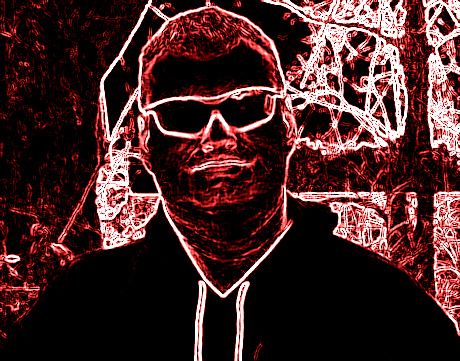
You can name the file now in the pop up window, just make sure to keep that ‘.gif’ at the  end. I advise you to name it now, like the one below I named something like ‘Ron_Hoodie_Glitter’. I really don’t know how to spell hoodie for sure but there you go. Why do I name my images with the undescore (_) between words? Because that’s the way SEO likes to read them, so why not do it now?

Now you get the ‘Save Complete’ button. Yep, click OK.

Now you’re done.

Ron_Hoodie_Glitter

Things you need to know:

  • You can sign up for a free account for the site or just do the images. I signed up, why not, right?
  • The other thing, you need to allow pop up ads for the page. For some reason it won’t always allow you to load images unless you do this. But it’s only for the one page so no big deal.

Why do I suggest you use fotoflexer and not paint?

  • Paint can make your text look very bad and unprofessional. fotoflexer makes it look clean and crisp.


Well, I hope this helps.


Much Respect

Ronovan


Some fun ones I did:

Ron_Hoodie_Heart


NEON Effect

Ron_Hoodie_Neon


followmeonbloglovin

2014 © Copyright-All rights reserved by ronovanwrites.wordpress.com