Creating a Twitter List
by: Ronovan
This is going to sound strange to start off talking about making Twitter Lists before some of you even have Twitter but believe me this is when you want to know. Otherwise you will end up putting out a blog article asking people to let you know if they have Twitter so you can put them in a group AFTER you already have hundreds or thousands of people to sort through.
By starting now, early on, you can put them in a group as you add them. In other words . . . you’ll do it the easy way.
Creating a Twitter account itself is simple in that all you need is your name, email, and a password. The signup process walks you through the steps.
Today I want to talk about the Twitter Lists options.
First up: Why?
You want to add your Followers or the people you Follow to certain lists based on what they are to you.
Examples:
Friends
Bloggers
WordPress Bloggers
Agents
Publishers
Photographers
Just Cool People
Good for RT Info
You can see there are various things you can come up with. Basically whatever helps you to remember. Also each time you create a List you get to add a description just in case you forget the reason for the group.
Second: What?
Once you have a List what do you do with it?
This is what I do with it so for any Twitxperts out there bear with me, I know you have your ideas.
- I use my WP Bloggers list to find my WP Blog Friends and ReTweet (RT) any of their things that look cool to me, even just basic Tweets. People love personal funny sometimes over information article Tweets. It gives people a bond to you.
- I use it to keep tabs on Literary Agents/Publishers to see if they have anything going on like a Tweet Pitch of your Manuscript (MS) coming up. Sometimes they will say for these two hours Tweet a Pitch of your MS. You have the 140 characters to use, part of which is the lit handle name. Go ahead and work on a pitch so you are ready now.
- I use it to keep track of my Friends from school or home.
- And I use it to actually see WordPress blogs that come out. With so many people I follow, the Reader in WordPress can be difficult, but on Twitter I can easily see who has put one out recently, if they have Twitter attached to their blogs.
- And you can put those Companies that Follow you in a List along with those who want you to pay for Followers. Just so you have those annoying people out of the way.
Third: How?
So how do you set up a list and how do you actually use them? First off there will be those who tell you about TweetDeck. TweetDeck will allow you to set up all sorts of things, but for me, I like just clicking on a List and seeing what I see. I may go into TweetDeck in another article, but for now I will stick just with what Twitter itself does. Just give me the basics. I like basics.
Step #1
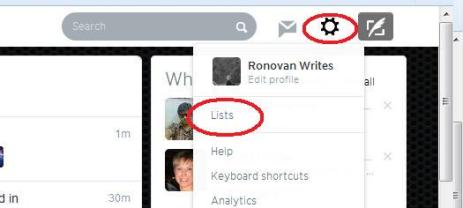
You are logged into Twitter and now you see in the top right corner, as of the writing of this article anyway, a little round Gear shaped icon. This is the ‘Settings and help’ icon. Click this and you will see a drop down box open, click ‘Lists’.
Step #2
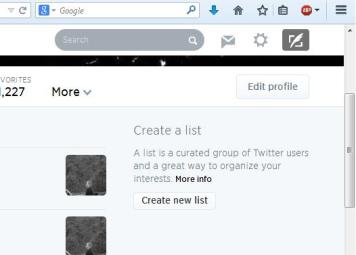
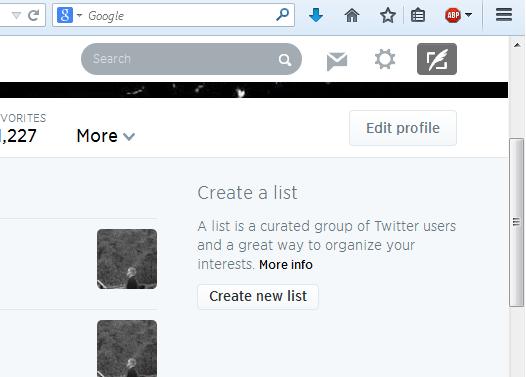
You are now on the Lists screen and you should see on the right a box that says ‘Create new list’, click it.
Step #3
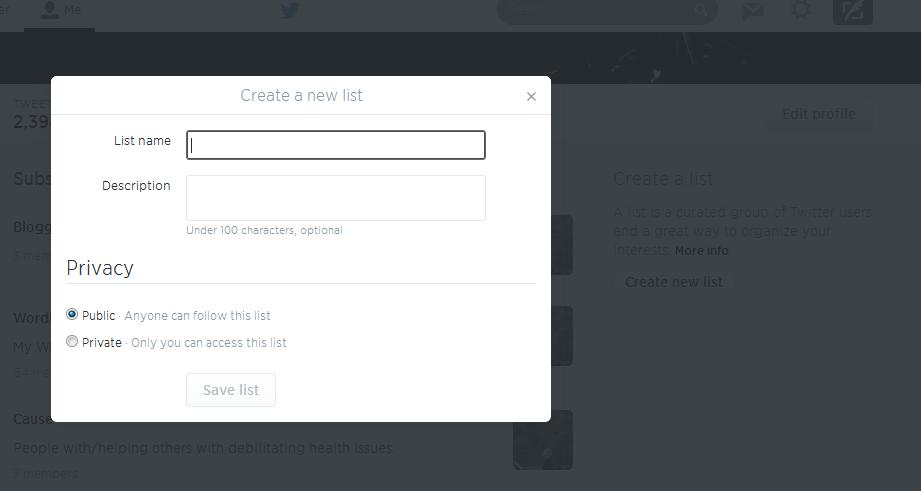
A box should now be on your screen with a ‘List name’ field/box and a ‘Description’ field/box. Type in the name of your List. You can also fill out the ‘Description’ if you like. I don’t always do that part. Once you have done this part you will choose if you want others to be able to see your List or not. So you choose ‘Public’ or ‘Private’ under the ‘Privacy’ section in the box. In all honesty I don’t want people to see my WordPress Friends list because I don’t want them using it to spam them for followers or with Tweets/messages about products.
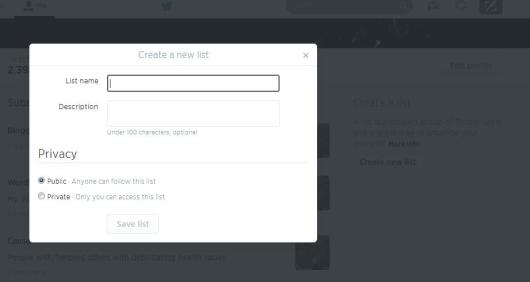
Finally click ‘Save List’ at the bottom of the box.
Step #4
You want to add your Followers or those you Follow to a List.
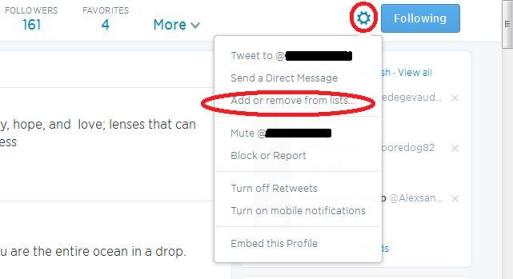
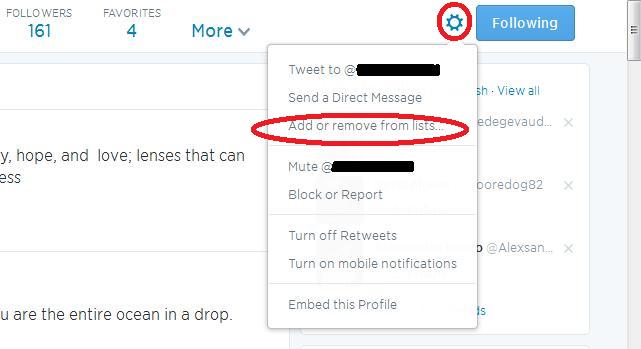
- Go to a person and click the ‘Gear’ on their page. You will see ‘Add or remove from lists’.
- A ‘Your Lists’ box will appear and you will just check which list(s) you want them to be in.
- Then click the ‘x’ to close the box.
Step #5
To use your Lists just go to your ‘Gear’ and click ‘Lists’, just as you did in Step #1. Not only do you create Lists here but you also can see all of the ones you have made and the number of people in each one.
Then click the List you want to see. You could just stay on this list the entire time you are on Twitter for the day and only see Tweets from those people.
Maybe one day you just want ‘Inspirational’ Tweets because you need a pick me up. Make an ‘Inspirational’ List.
And remember, people can be in more than one List. I have a WordPress Friends list that everyone that follows me and has a WordPress blog, or that I follow for that matter and has a WordPress blog is in. But some of those may fit into other areas. I may put some into a list like ‘Great for Editing Information’ or ‘Photography’.
You may be thinking “Why the bother, why not just look at all the Tweets?” You will want to support people on Twitter by following them, but you may not like their Tweets. You could just have a ‘Yes’ List and a ‘No’ List. One to view and one not to. That simple. And you can change the person from one to the other any time you like.
Copyright-All rights reserved-©RonovanWrites.wordpress.com-June 27, 2014.
Spread this stuff everywhere!

 I want to help.
 #1
#1 sts and look at my WordPress Friends List and Follow all of those Friends you haven’t connected with yet. Sometimes it’s a connection that slips through the cracks.



 ronovanwrites