How to get your Twitter Handle to show when people Share your blog articles.

You ever notice how when your blog gets tweeted by someone that it says ‘by @wordpress’? You want it to say ‘by @yourtwitterhandle’, well not actually the words yourtwitterhandle. It would actually be whatever your actual . . . um, you get it.

Why is this important? Each time someone clicks the Twitter option to share your blog article you want your name attached to. That’s advertising, that’s credit, that’s what you deserve. When I share an article of a blog I like and the Twitter Handle isn’t in there I go looking for it either on their site or on Twitter itself and replace the WordPress with the real thing, but I don’t know if that’s just me or not.

How to get your Twitter Handle to show up when your articles are shared in Tweets.

by: Ronovan

So you’ve connected Twitter to your WordPress blog and you are even Publicizing up a storm and you go look and is says ‘by @wordpress‘. Blogger say what?

Do this:Twitty Bird

  1. Click your Dashboard
  2. Click Settings at the bottom
  3. Click Share when it appears under Settings
  4. Scroll down the page and find “Twitter username to include in tweets when people share using the Twitter button.”
  5. Type in your Twitter handle, without the @ included.
  6. Click Save Changes.

To check and make sure it is working properly, go to one of your blog articles and click Twitter. Your Twitter handle should now appear. Now whenever anyone Shares and Tweets your blogs your name is attached and you get a bit of name recognition out there. If it’s not showing sign out and back into WordPress and possibly clear cache. I haven’t had to do that myself but those are things to try just in case.


Hope this helps.


Much Respect

Ronovan

© Copyright-All rights reserved-RonovanWrites.wordpress.com-July 05, 2014.

You have WordPresss Blog & Twitter? Tell me!

This is a message to my Friends that support me here in WordPress and also happen to be on Twitter.

I want to ReTweet you!

Please HELP me by letting me know if you have a Twitter account so I can ADD YOU to my NEW WORDPRESS LIST there. I want to make sure that I first and foremost RT (Thats ReTweet for all of us Twidiots as I call people like me.) all of your blog Tweets and anything I think is cool that I can share with people and secondly I want to focus knowing my Friends. Yes if you are Following my Blog I consider you a Friend. You’re not a Follower. You’re a Friend. And I like to support and help my Friends. Click here to learn about Twitter Lists. (Think Friend List.)

Maybe this sounds like some odd thing to you, but I’m serious. You can ask others on my list. I don’t ask anything of you, I just like to help. It makes me feel good about myself at times. I know that’s a selfish reason but it helps me.

I know, some of you follow me on Twitter already and I RT you already, but I am trying to go through my list of people and I’m finding it difficult at times discovering who is what and where.

AND DO NOT THANK ME FOR AN RT! Otherwise you will be doing that a lot most likely. We support each other in the community and it’s something I WANT TO DO!

This will also possibly help other WordPress members follow each other as well.

Just reply to this Post or if you are already Following me in Twitter you can shoot me a Direct Message (DM).


Much Respect (I so wanted to say ‘and Tweet you Later, but I refrained.)

Ronovan

Connecting Twitter to your Blog to Publicize your Blog articles.

You’re scared to death of Twitter. IT FREAKS YOU OUT! No worries. You don’t really have to be there to use it. Just have an account and let WordPress do the work for you. Here’s how to connect Twitter and WordPress together.

Don' Freak Out Meme

Automatically Sending your new Blogs to Twitter

By: Ronovan


Be logged into Twitter.

Go to your Dashboard in your blog

At the bottom you will find Settings, hover over this and a box will appear, click Sharing in that box.

OR

If you click Settings a box of options appears below it and you can choose Sharing there.


You will see various social networks to link to. Choose any you like. For now click connect beside Twitter. Then accept it asking you to connect.


Difficult, huh?

Easy Button

Now whenever a blog of yours posts it will go to Twitter as well, or should, it is technology after all.


Bonus Tip

You’ll notice in the Add New Post section, where I am typing this now, that on the right side where you have the Publish button there is a Publicized: Edit Settings  option. If you click Edit you can customize the message that will appear with your Twitter announcement of your blog post. I sometimes put in the hashtags I want to use, you know the #Blogs or #Photography things you see sometimes. You don’t have to go to Twitter to do anything.


Also when you click Edit you can uncheck any of your authorized connections you don’t want the article to Publicize to. Like I don’t always want mine to go to facebook.


But that’s how simple it is.

Buh Bye Kitten


© Copyright-All rights reserved-RonovanWrites.wordpress.com-July 03, 2014.

How, What, and Why To Create a Twitter List

Creating a Twitter List

by: Ronovan


This is going to sound strange to start off talking about making Twitter Lists before some of you even have Twitter but believe me this is when you want to know. Otherwise you will end up putting out a blog article asking people to let you know if they have Twitter so you can put them in a group AFTER you already have hundreds or thousands of people to sort through.


By starting now, early on, you can put them in a group as you add them. In other words . . . you’ll do it the easy way.

Creating a Twitter account itself is simple in that all you need is your name, email, and a password. The signup process walks you through the steps.


Today I want to talk about the Twitter Lists options.Twitty Bird

First up: Why?

You want to add your Followers or the people you Follow to certain lists based on what they are to you.

Examples:

Friends

Bloggers

WordPress Bloggers

Agents

Publishers

Photographers

Just Cool People

Good for RT Info


You can see there are various things you can come up with. Basically whatever helps you to remember. Also each time you create a List you get to add a description just in case you forget the reason for the group.


Second: What?

Once you have a List what do you do with it?

This is what I do with it so for any Twitxperts out there bear with me, I know you have your ideas.

  • I use my WP Bloggers list to find my WP Blog Friends and ReTweet (RT) any of their things that look cool to me, even just basic Tweets. People love personal funny sometimes over information article Tweets. It gives people a bond to you.
  • I use it to keep tabs on Literary Agents/Publishers to see if they have anything going on like a Tweet Pitch of your Manuscript (MS) coming up. Sometimes they will say for these two hours Tweet a Pitch of your MS. You have the 140 characters to use, part of which is the lit handle name. Go ahead and work on a pitch so you are ready now.
  • I use it to keep track of my Friends from school or home.
  • And I use it to actually see WordPress blogs that come out. With so many people I follow, the Reader in WordPress can be difficult, but on Twitter I can easily see who has put one out recently, if they have Twitter attached to their blogs.
  • And you can put those Companies that Follow you in a List along with those who want you to pay for Followers. Just so you have those annoying people out of the way.


Third: How?

So how do you set up a list and how do you actually use them? First off there will be those who tell you about TweetDeck. TweetDeck will allow you to set up all sorts of things, but for me, I like just clicking on a List and seeing what I see. I may go into TweetDeck in another article, but for now I will stick just with what Twitter itself does. Just give me the basics. I like basics.


Step #1

You are logged into Twitter and now you see in the top right corner, as of the writing of this article anyway, a little round Gear shaped icon. This is the ‘Settings and help’ icon. Click this and you will see a drop down box open, click ‘Lists’.
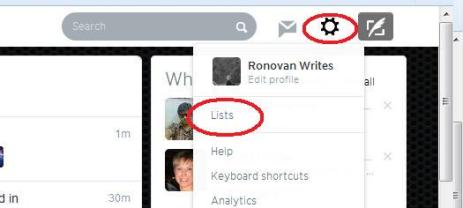
Lists


Step #2

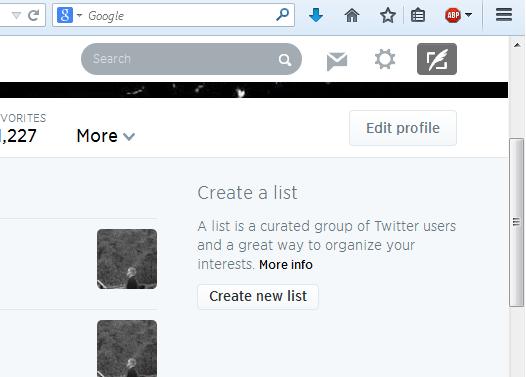
You are now on the Lists screen and you should see on the right a box that says ‘Create new list’, click it.
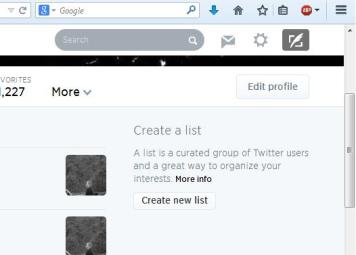
CNL


Step #3

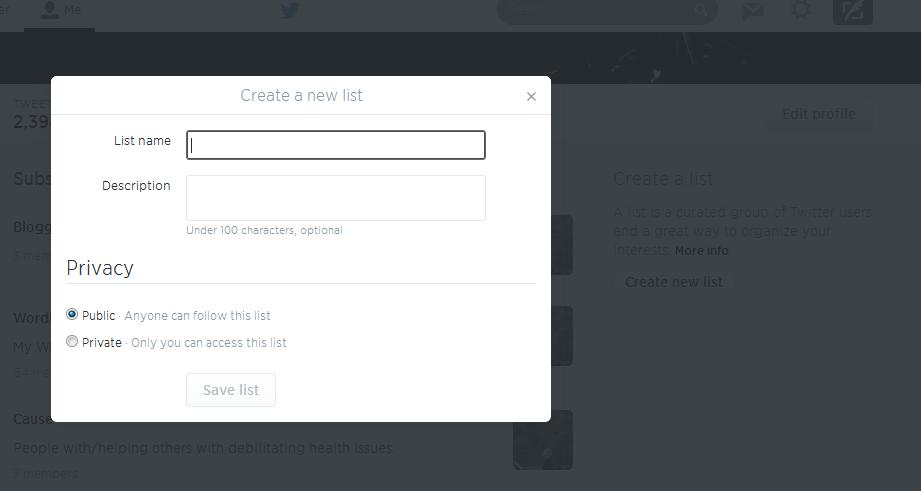
A box should now be on your screen with a ‘List name’ field/box and a ‘Description’ field/box. Type in the name of your List. You can also fill out the ‘Description’ if you like. I don’t always do that part. Once you have done this part you will choose if you want others to be able to see your List or not. So you choose ‘Public’ or ‘Private’ under the ‘Privacy’ section in the box. In all honesty I don’t want people to see my WordPress Friends list because I don’t want them using it to spam them for followers or with Tweets/messages about products.
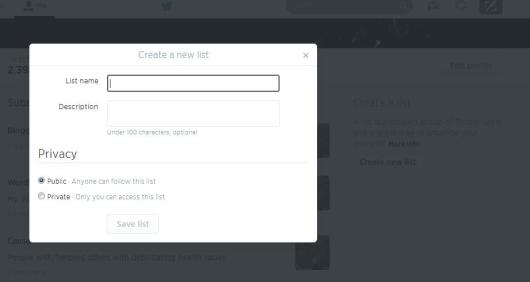
CANL

Finally click ‘Save List’ at the bottom of the box.


Step #4

You want to add your Followers or those you Follow to a List.
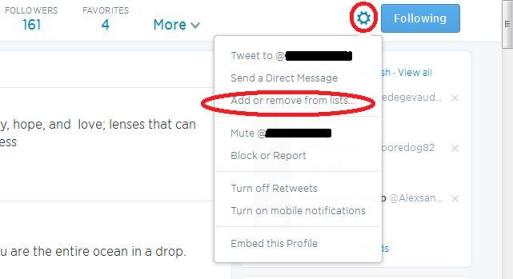
Add To Twitter List

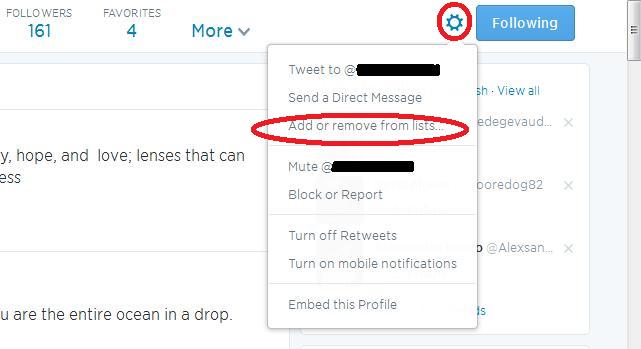
  • Go to a person and click the ‘Gear’ on their page. You will see ‘Add or remove from lists’.
  • A ‘Your Lists’ box will appear and you will just check which list(s) you want them to be in.
  • Then click the ‘x’ to close the box.


Step #5

To use your Lists just go to your ‘Gear’ and click ‘Lists’, just as you did in Step #1. Not only do you create Lists here but you also can see all of the ones you have made and the number of people in each one.

Then click the List you want to see. You could just stay on this list the entire time you are on Twitter for the day and only see Tweets from those people.

Maybe one day you just want ‘Inspirational’ Tweets because you need a pick me up. Make an ‘Inspirational’ List.

And remember, people can be in more than one List. I have a WordPress Friends list that everyone that follows me and has a WordPress blog, or that I follow for that matter and has a WordPress blog is in.  But some of those may fit into other areas. I may put some into a list like ‘Great for Editing Information’ or ‘Photography’.

You may be thinking “Why the bother, why not just look at all the Tweets?” You will want to support people on Twitter by following them, but you may not like their Tweets. You could just have a ‘Yes’ List and a ‘No’ List. One to view and one not to. That simple. And you can change the person from one to the other any time you like.


Copyright-All rights reserved-©RonovanWrites.wordpress.com-June 27, 2014.

Blogging Tips: Curious about where your ‘view traffic’ is coming from?

Blogging Tips: Curious about where your ‘view traffic’ is coming from?

by: Ronovan


“I don’t care where it comes from as long as I get it!”


That’s the attitude of most or at least many of those with websites, depending on the purpose of the site. If you are just wishing to share your creativity, then this article is not for you. This article is for those wanting to increase viewership and perhaps their online presence for professional reasons or maybe even just curious about where and how people find them.


For those falling into the second category, the following I give you in response to the “I don’t care…” comment.


“Seriously? Seriously? I can’t believe you thought that.”


Empty FreewayMaybe it’s the former data analysis guy in me, yeah, I did that too on top of having been a teacher and other things…cry with me now…okay now on with the show, but I want to KNOW.


You want to grow your readership like a web, not a straight line. By straight line I mean with only one source of followers/readers/viewers. This can mean just your friends or family or fellow bloggers. You want ALL of that and more. With a web you don’t depend on one type of viewer.


On your WordPress Stats page you can see under Referrers where your visitors are coming from. It may be;

  • Reader
  • Dashboard
  • Twitter
  • Or even a link on another bloggers page.


For those who are striving for web presence, you need to know these things.


REFERRERS information

You can view this information by;

  • Current Day
  • Yesterday
  • Summaries. Within Summaries you have other time span options.


If I click on my ‘All time’ option, which is my entire blog history, I can see that the WordPress.com Reader and Light Traffic FreewayTwitter are basically tied for first place in Referrers with dailypost.wordpress.com and WordPress Dashboard almost tied for third.


If I look at the ‘7 Days’ option I see that dailypost.wordpress.com is first, Twitter is second, and WordPress.com Reader is third.


I know why dailypost.wordpress.com reader is in first with a huge increase. I started the Writing 101 Blogging University this past Monday and participants post links to their assignments on a certain page for others to click and see.


I look at both big picture and little picture to see how things have been and how things are recently. If my Reader response is dying off, I have to determine why. If Twitter is dying, then why is it?


Twitter

If you use Twitter you can also see if your Tweets are generating clicks back to your articles.

  1. Go to the ‘gear’ in the upper right corner of the screen, click and then click Analytics
  2. You can then look at each Tweet and see the number of clicks that each resulted in, within the body of the Tweet in the first column, how many Faves you received, Retweets, and Replies. You may also see something that says 4XNormal Reach or some other number. That means you reached that much more of your normal audience with that Tweet due to ReTweets (RT).


There are more data options to view but these are the Twitter options I want to look at for our purpose today.

Busy Freeway

This information can help you look at when things happen and what content you put out that either increased or decreased your site traffic. I’m not saying you should write to increase traffic, unless that is your purpose. If that is your purpose then you need to use what you have available to you.


If you look at my categories and offerings you will see I am random and just write whatever comes to mind. But some want to keep their site within a certain theme. In the Analytics of Twitter you can even see the interests by percentage of your Followers to see if you are reaching the people you want to reach. But that is for another article another time.


Write and create for you and as long as it is honest creativity you WILL find your audience.

(I would have included images of my traffic numbers but they are so much lower than everyone else’s that I didn’t.)

© Copyright-All rights reserved-RonovanWrites.wordpress.com-June 08, 2014.